
How to use Konbi: shared shopping lists and Android widgets
Last updated: 6 October 2026.
A guide to the Android app and browser version. Native Apple and Windows store availability is separate.
Start with one shared grocery list
Konbi is a shared shopping-list app for couples, families and flatmates. Add what you need, share the list and check items off as you buy them. Google sign-in gives you a Konbi account so the same permitted lists can be used across devices. Everyone signs in with their own Google account; do not share passwords. The Android home-screen widget is part of the native Android app, not the browser installation.
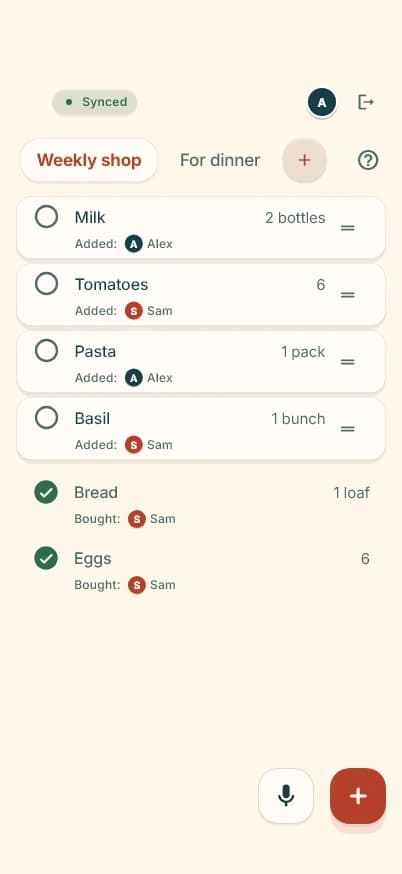
The question mark opens quick Help inside the app. That help works offline. The coloured avatar/initial opens account settings. Long-pressing a list name opens settings for that list, not for the whole app.
Add shopping items, quantities and units
Select a list by tapping its name along the top. The plus button beside the list names opens Create New List or Join List with Code. The larger plus button near the bottom adds an item to the selected list. Enter a short name such as Milk and optionally a quantity and unit, such as 2 bottles, then save. Existing account/list limits may apply.
On supported mobile devices, a clipboard containing multiple non-empty lines may offer clipboard import when adding an item. Review the prompt rather than assuming entries are automatically sent. Manual typing is always available. Optional microphone input records a command and sends it to Google for item extraction, requiring permission and provider connectivity. You do not need microphone permission to type an item.
Check off, edit and delete items
Tap the circle beside an item to mark it bought. It moves into the completed section with its Bought attribution. Tap again to put it back on the shopping list if it is out of stock or you ticked the wrong item.
Long-press the body or name of an item to open its Edit/Delete menu. Edit changes the name, quantity and unit. Bought items remain editable without losing their bought attribution. Swipe towards the delete side where supported. The Undo message offers a brief chance to restore the item, not a permanent recycle bin. Assistive-navigation settings may keep the action available longer.
Drag and drop your shopping order
Use the small drag handle on the right of an unbought item, drag the row up or down and release it in place. Long-pressing the item name is for editing; the handle is for reordering. Arrange items in shop order or put urgent items first. Bought rows are kept separately and do not show the same active-list drag control.
Item order and check state belong to the shared list. Changes can appear for other members after synchronisation, rather than giving each member an independent personal ordering.
Add the Android shopping-list widget
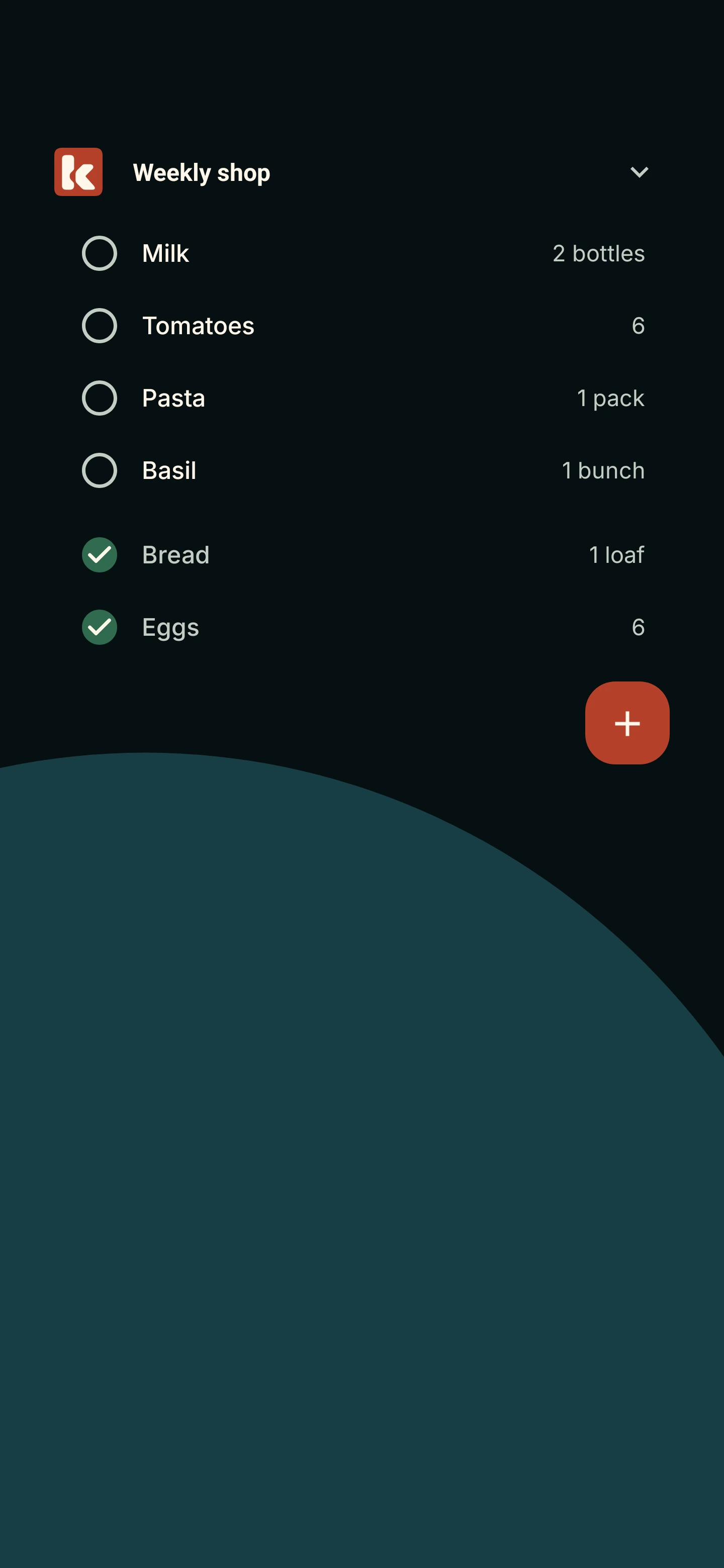
Install and open the native Konbi Android app, sign in and let your lists become available. On most Android launchers, touch and hold an empty home-screen area, choose Widgets, find Konbi and place the shopping widget. Steps and resize limits vary by launcher and Android version. The browser app's Add to Home screen is not the native Android widget.
Tap the widget's list heading/selector to choose a list. Use its check circles to mark items bought and its plus button to add an item. The Konbi icon in the top-left opens the selected list in the app in the updated version. If a list was deleted, access changed or another account is active, the app must not open stale private list data. Resize using your launcher's normal widget handles where supported. Physical device behaviour matters more than a browser screenshot.
Widget appearance and account settings
Tap your avatar/initial to open account settings and change your display name so other members recognise your contributions. Android widget appearance is a setting for this device. Enable Transparent background to remove the solid ground. Choose Light text for a dark wallpaper, Dark for a light wallpaper or Auto for a wallpaper-colour summary. Auto does not read the exact pixels beneath each row; use a manual mode if contrast is poor. Anyone who sees the home screen may see list details.
If supported, App Lock uses the device's fingerprint or face authentication, not a new Konbi password. Privacy policy and Request account deletion links are in account settings and on the login screen. Signing out affects this device's session; uninstalling or signing out is not server account deletion. Deletion requests go to Wacky Works Digital support for verification and fulfilment, not an instant data wipe.
Understand sync and offline use
The status near the top explains what is happening. Synced means the app reports no current transfer issue; Syncing or Retrying means work is in progress. Offline means it is not connected. Sync failed means an upload or download issue needs attention. Tap the status to request a retry. Give it time and check the other device rather than repeatedly toggling the same item.
Local copies allow many shopping edits without a connection after your account and lists are loaded. Initial sign-in, joining a list, optional voice and fresh remote data need connectivity. Changes wait for synchronisation and may not reach another device immediately. Android battery restrictions, sleeping phones, notification permission and launcher behaviour can delay widget refresh. Returning to Konbi can let it catch up.
The current family beta has had a first-widget-update issue where a peer edit primes sharing. Widget changes are not guaranteed instant. If another device appears stale, open Konbi, check the same account/list and status, and retry when online. Do not uninstall, clear app data or discard pending changes as a troubleshooting shortcut.
FAQ
Where are app settings?
Tap the avatar/initial. Long-press a list name for list-specific settings; the question mark opens Help.
How do I edit an item without dragging it?
Long-press the item body/name for Edit/Delete. Drag using the right-hand handle when you want to change the order.
Does the Android widget come with the browser app?
No. Install the native Android app to use the shopping-list widget.
Can I use Konbi without an internet connection?
Loaded local lists support many offline edits. Sign-in, joining, voice and receiving fresh shared changes require connectivity.
Why has my partner's widget not changed yet?
Network, battery, sleep and launcher conditions can delay refresh. Open Konbi, check the list/status and retry online. The family beta still has a known first-widget-update limitation; don't clear pending data.
Does signing out delete my account?
No. Use Request account deletion and follow the support verification flow.